> ## Documentation Index
> Fetch the complete documentation index at: https://docs.squashcodes.com/llms.txt
> Use this file to discover all available pages before exploring further.
# Initial Setup
> Bought your first resource and don't know how to start it? Here's how.
This step must be repeated for **ALL** products in your account. You need to configure each one the same way, including setting the IP for each on the WEBSITE.
* [Video Tutorial](#video-tutorial) → `See how to start the resource with a video guide`
* [Text Tutorial](#text-tutorial) → `Step-by-step instructions to start the resource in text form`
* [Common Errors](#common-errors) → `See how to fix common issues when starting the resource`
# Video Tutorial
# Text Tutorial
## Step 1
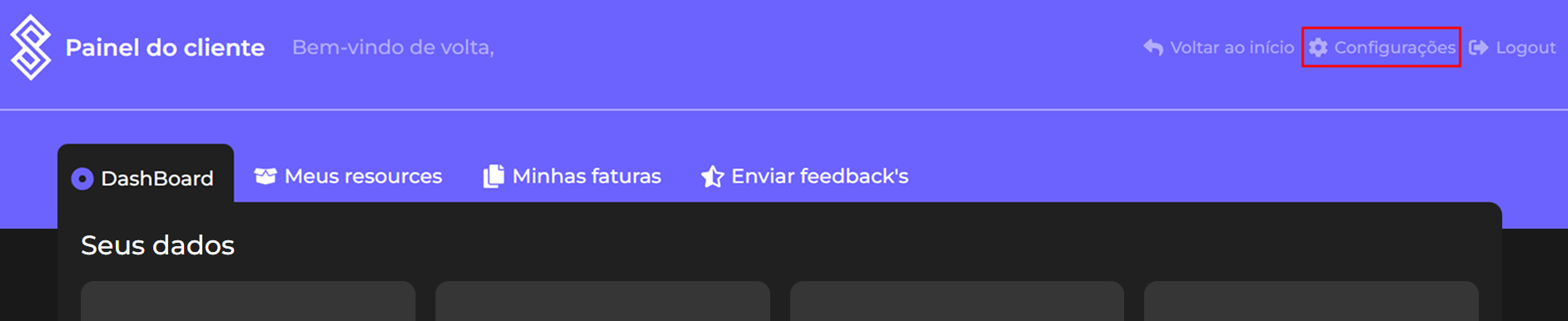
The first thing you should do is go to our [WEBSITE](https://www.squashcodes.com) and log into your account by clicking **"Client Area"** in the upper right corner. Then, go to the **account settings** in the same corner, as shown below:
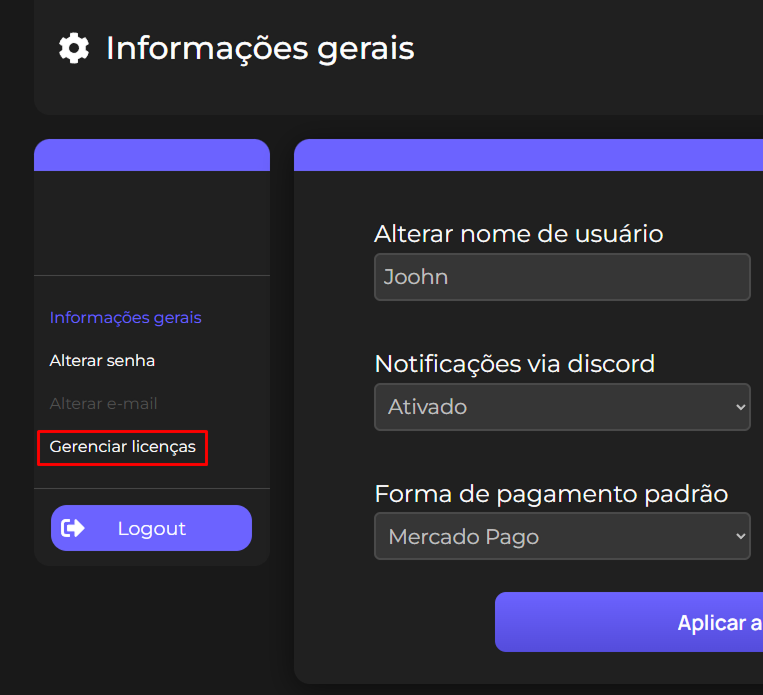
Next, look for **Manage Licenses** — this option is located just below your account name, as shown here:
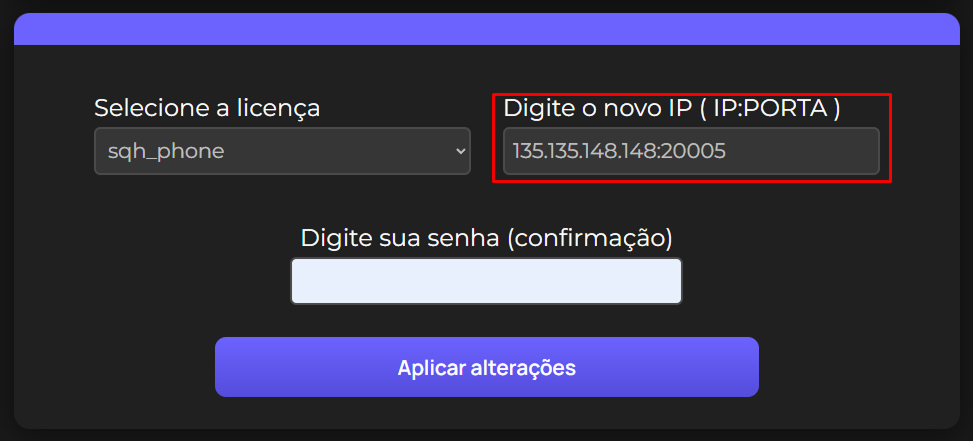
You will now see a panel with all your licenses. Choose the product you want to assign an IP to and enter it in the field shown below:
### How to get the IP?
#### Hosted Server
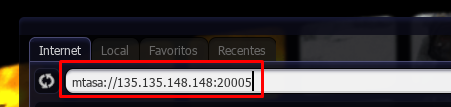
Just open your MTA, select your server from the server list, and copy the IP shown at the top, as in the example below:
#### Local Server
Go to this [WEBSITE](https://www.squashcodes.com), copy the IP shown there, then get the port from your MTA. The final format will be:
SITE IP:MTA PORT
## Step 2
Now that you've added your IP on the site, it’s time to configure it inside the script. Stay in the **MANAGE LICENSES** panel.
Open the configuration file of your product, usually located inside a folder called `config`, named `main.lua` or `config.lua`. The first line should look like this:
```lua theme={null}
license = {
["Email"] = "",
["Key"] = "",
}
```
Now fill in the fields **inside the quotes** `""`. You can get the KEY from the **MANAGE LICENSES** page on the website, as shown below:
Your final config file should look like this:
```lua theme={null}
license = {
["Email"] = "support@squashcodes.com",
["Key"] = "SQUASH-2020-2020",
}
```
If your product still doesn't start properly, we recommend that you open a ticket in our [Discord](https://discord.gg/XFfKTDF3ak) channel so we can assist you in the best way.
# Common Errors
#### getServerIpFromMasterServer
```
attempt to call global 'getServerIpFromMasterServer' (a nil value)
```
If this error appears when starting one of our products, you need to update your MTA server to the latest version, or any version **above 1.6.0 r22890**.
**Why does this error occur?**\
This function is a very recent addition to MTA, so your server may not yet be updated to support it.
### If you don’t know how to update, contact your HOSTING PROVIDER and ask them to update it for you.
 Next, look for **Manage Licenses** — this option is located just below your account name, as shown here:
 You will now see a panel with all your licenses. Choose the product you want to assign an IP to and enter it in the field shown below:
 ### How to get the IP?
#### Hosted Server
Just open your MTA, select your server from the server list, and copy the IP shown at the top, as in the example below:
### How to get the IP?
#### Hosted Server
Just open your MTA, select your server from the server list, and copy the IP shown at the top, as in the example below:
 #### Local Server
Go to this [WEBSITE](https://www.squashcodes.com), copy the IP shown there, then get the port from your MTA. The final format will be:
SITE IP:MTA PORT
## Step 2
Now that you've added your IP on the site, it’s time to configure it inside the script. Stay in the **MANAGE LICENSES** panel.
Open the configuration file of your product, usually located inside a folder called `config`, named `main.lua` or `config.lua`. The first line should look like this:
```lua theme={null}
license = {
["Email"] = "",
["Key"] = "",
}
```
Now fill in the fields **inside the quotes** `""`. You can get the KEY from the **MANAGE LICENSES** page on the website, as shown below:
#### Local Server
Go to this [WEBSITE](https://www.squashcodes.com), copy the IP shown there, then get the port from your MTA. The final format will be:
SITE IP:MTA PORT
## Step 2
Now that you've added your IP on the site, it’s time to configure it inside the script. Stay in the **MANAGE LICENSES** panel.
Open the configuration file of your product, usually located inside a folder called `config`, named `main.lua` or `config.lua`. The first line should look like this:
```lua theme={null}
license = {
["Email"] = "",
["Key"] = "",
}
```
Now fill in the fields **inside the quotes** `""`. You can get the KEY from the **MANAGE LICENSES** page on the website, as shown below:
 Your final config file should look like this:
```lua theme={null}
license = {
["Email"] = "support@squashcodes.com",
["Key"] = "SQUASH-2020-2020",
}
```
If your product still doesn't start properly, we recommend that you open a ticket in our [Discord](https://discord.gg/XFfKTDF3ak) channel so we can assist you in the best way.
# Common Errors
#### getServerIpFromMasterServer
```
attempt to call global 'getServerIpFromMasterServer' (a nil value)
```
If this error appears when starting one of our products, you need to update your MTA server to the latest version, or any version **above 1.6.0 r22890**.
**Why does this error occur?**\
This function is a very recent addition to MTA, so your server may not yet be updated to support it.
### If you don’t know how to update, contact your HOSTING PROVIDER and ask them to update it for you.
Your final config file should look like this:
```lua theme={null}
license = {
["Email"] = "support@squashcodes.com",
["Key"] = "SQUASH-2020-2020",
}
```
If your product still doesn't start properly, we recommend that you open a ticket in our [Discord](https://discord.gg/XFfKTDF3ak) channel so we can assist you in the best way.
# Common Errors
#### getServerIpFromMasterServer
```
attempt to call global 'getServerIpFromMasterServer' (a nil value)
```
If this error appears when starting one of our products, you need to update your MTA server to the latest version, or any version **above 1.6.0 r22890**.
**Why does this error occur?**\
This function is a very recent addition to MTA, so your server may not yet be updated to support it.
### If you don’t know how to update, contact your HOSTING PROVIDER and ask them to update it for you.